|
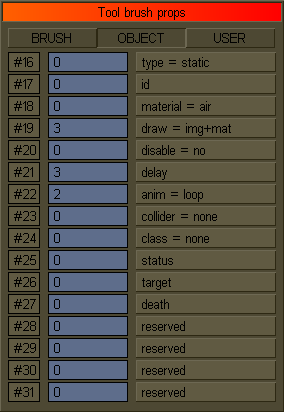
Some of the logic properties have visual effects in the editor,
but most of them are only used during the game.
Imagine you talk to a character for the first time in a game.
He tells you about something he lost and he needs it found.
If you talk again, he will just tell you something else, like to hurry up.
After you find the item and give it to him, he will only tell you how satisfied he is.
All the progress of the puzzle above can be stored in a logic property of the character's brush, like the status property.
By default when the game starts and loads the map with all brushes and their initial properties set form the editor,
the status of our character is 0. So a specific text will be displayed when talk to him and the status will be increased to 1.
Next time you talk to him the status property is found 1, a different text will be presented and again.
And when the item is found and returned the status can be set to another value, like 2 for example, and it will remain so.
|
|
Even if most of the logic properties are used during gameplay only, I'll tell you a few words about each of them.
Don't worry, you will learn to use them in the DizzyAGE manual.
Static and dynamic brushes
The brush type property is a very important one.
It separates the brushes from a map in two distinct categories: static and dynamic.
To the editor this will not make much difference, but the game's engine keeps these brushes separated and does different things with them.
You can usually think at the static brushes as to those brushes that do not move (don't change position nor size) during the game and the player
can't interact with them. They are used to create the static enviroment of a map, like ground, rocks, trees, clouds,
buildings, walls and so on.
The dynamic brushes on the other hand, are those brushes that may move around the map or in the room they have been placed.
You can interacted with them during gameplay, and they can respond to player's actions or collision. In this
category fall all pickable items, characters, moving platforms, water drops and so on.
Sometimes the dynamic brushes are called objects, while the static brushes are called just brushes.
If the basic visual properties are common to both dynamic and static brushes, not the same thing can be said about the logic properties.
Some of them are present for all brushes, but most of the logic properties are only making sense when set on dynamic brushes.
There are situations where the game will access some static brushes too, but this is usually done for the dynamic brushes.
Since you can't talk to a static brush there's no need to set it's status property...
Brush ID
The id property is an unique numeric identifier for brushes.
If set different than 0, it can be used by the game to search and access the brush during gameplay
and to change some of it's properties when a specific event is happening.
If you remember the door and the key puzzle, the brush representing the door can be accessed using
it's unique id and have the tile and other relevant properties changed when the player uses the key on it.
All brushes are kept by the game in a special list, indexed from 0 to the total number of brushes-1,
but while editing the map their order might change, so remembering their indexes will be useless.
That's why such an unique id must be set for brushes that must be accessed in game.
The search will run throught the whole brushes list trying to find the first one with the requested id.
Since some static brushes might need to be accessed in game, they must have the id property set.
A list with these ids of static brushes is saved along with the map, in the dizzy.brs file,
that is used by the game when saving or loading the playing progress, as a saved game file.
However, most of the static brushes will keep the id to 0, and since none of their properies will have to change during the game,
they will not be remembered in such files.
Since dynamic brushes are to be accessed in the game, they must all have the id property set correctly.
In fact, a dynamic brush without an unique id makes no sense since the game will not be able to find and access it.
Keep a written record of the brushes ids you use, so you can avoid having two brushes with the same id!
Material
|
The material property gives the engine the needed information about what is solid
in the map, so the player can stand on, or be blocked by it, what is soft, what is void, etc.
If the tile is how a brush looks like, the material is what it's made of.
There are a number of distinct materials, each with it's own density and use.
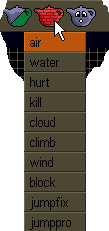
The material property can be set from the top toolbar and from the properties dialog and
it is available only for static brushes. So keep it 0 for the dynamic ones.
The air is the default material (0) and, because it has a void density,
it allows the player to pass through without restrictions.
A cloud material with the soft density will slowly let the player fall through.
The block material has hard density and will not permit the player to fall nor to walk through.
A brush with the hurt material has also void density, but will decrease the player's energy while
he's passing through, like the flames of the torces torces or acid baths.
|
| MATERIALS DENSITIES |
| 0 |
MATD_VOID |
The player will fall through void materials like they are not there.
| |
| 1 |
MATD_SOFT |
The player can both to stand on and to pass through these densities.
| |
| 2 |
MATD_HARD |
The player will not pass nor fall through these blocking materials.
| |
| 3 |
MATD_JUMP |
These are similar to soft densities.
| |
| MATERIALS |
| 0 |
MAT_AIR |
It's the default material and will not restrict player's movement.
When standing in air, player will fall through.
VOID |
|
| 1 |
MAT_WATER |
The player will run out of air, if he stats under water too long.
Water material doesn't kill the player instantly.
He can also be set to swim in water materials.
VOID |
|
| 2 |
MAT_HURT |
The player will get hurt when he touches a brush with this material.
Can be used for fires, torches, light acid waters, etc.
VOID |
|
| 3 |
MAT_KILL |
This material instantly kills the player when colliding with it.
Usefull to make water pools kill you, by placing an invisible brush over them.
Also can be used for spikes and anything else you have in mind.
VOID |
|
| 4 |
MAT_CLOUD |
Even if player can stay and walk throught this material,
he will slowly sink through it.
Used for clouds or quick sands, etc.
SOFT |
|
| 5 |
MAT_CLIMB |
Player can jump up through this material but he will not fall through.
Usefull for stairs or ropes.
SOFT |
|
| 6 |
MAT_WIND |
Player could be influenced by some wind force while inside this material.
By default he will be slowly pushed up, like in a wind shaft.
The wind force or direction can be changed for each game and, if need, even for each location.
Used for air shaft, wind areas, or some other ideas.
SOFT |
|
| 7 |
MAT_BLOCK |
Player will not fall through this material and he will not be able to pass through.
Used for ground, walls, doors or other blocking things.
|
|
| 8 |
MAT_JUMPFIX |
Fixed jumpers will make player jump with a fixed power when he falls on them.
JUMP |
|
| 9 |
MAT_JUMPPRO |
Pro jumpers will make player jump with progressive power when he falls on them.
The higher the fall, the longer the jump.
JUMP |
|
The material colors are display conventions. What's important is the way the game interprets them.
Advanced users can change the behaviour of these materials and they can even add more (up to 32) and interpret them in the game as they need.
For those brushes with their draw property requesting it (we'll get to that soon enough),
the game engine will paint them on an off-screen special surface, called the material map.
This painting is not performed as it is on the screen using the color and the shader properties,
but each brush is painted with the plain color coresponding to it's material.
Let's see a relevant example:
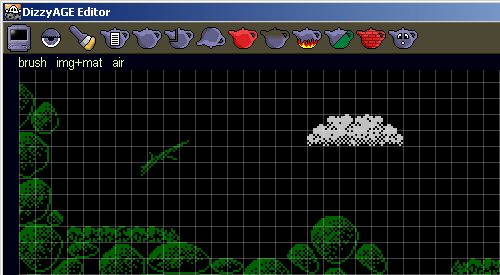
In the first image, the map is displayed as usual. The only dynamic brush is the coin on the cloud.
In the second image, the map is displayed in the material mode and only the brushes that write in the
material map are showed. You can see how the blocking material of the ground brushes makes them be
painted in green, as the cloud material on the cloud paints it in light blue.
The tree trunk is not blocking the path so it doesn't write in the material map.
But it's little right branch has the blocking material set, so Dizzy can jump on it and from there
to the cloud to pick the coin.
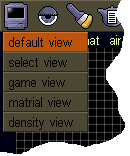 |
To visualize a preview of how the material map would look like in the game, you can set the editor's view mode
to material or even to density.
The material map is painted when the player enters a room, so if the game needs to change the material
property of a brush or enable/disable writing it in the material map,
it will have to request the game engine to repaint the material map to see the change right away.
The main advantage of using materials is they provide "pixel-perfect" collision, exactly as the brush looks.
|
Draw
For dynamic brushes, the draw property will only have two values.
That's 0 to hide it and 1 to display it. This does concern only the painting of the brush and not it's
capability to interact with the player.
For the static brushes, another two values are available.
The value 2 will request the game's engine to paint the brush only in the material map
and the value 3 will paint it both on screen and in the material map.
You can say the screen draw is set from bit 0 and the material map draw from bit 1.
The change of the draw property is the most common purpose for accessing static brushes.
Since static brushes are the best way to block the player's path, a door, or a cave's entrance might be created
as such a static brush with a blocking material to write in the material map. When the player unlocks it,
the game will change its material and refresh the material map, letting the player pass.
You might wonder how to interact with it and unlock it, if it's static.
Well, you can use a dynamic invisible brush to trigger an event when using the key next to the door.
This kind of techniques will be presented more detailed in the DizzyAGE manual.
Disable
Since the draw property can only affect the display of a dynamic brush, you can use the
disable property to disable it completly.
If a brush has the disable property set to 1, it will not be displayed on screen and the user will not be able to interact with it.
This property is available for dynamic brushes only.
When the player picks up a pickable item, the item's brush remains there but it's disabled using this property,
until dropped down again, when its position is updated to the current player's position and of course it is enabled again,
by setting the disable property to 0.
Animation
The anim property will specify the animation mode of brushes with animated tiles.
The stop value (0) will not update the animation.
The play value (1) will make the game play the animation only once and then stop it.
The loop value (2) is the most common and it will repeat the tile's animation forever.
The property is available for both static and dynamic brushes.
However, the play value will not be much usefull with static brushes.
The editor will not present the animation of a brush once it was placed on the map but it will
show it in the tile browse dialog and on the current brush, hooked in the mouse cursor.
The animation is related to the delay property. This specifies the
delay interval between animation frames and it's value is given in game cycles since this the game's FPS is
set constant at about 37 frames per seconds.
The value 3 will match the speed of the default player's animation, that is updated only from 3 to 3 game cycles.
As you set different delay values, you can see the speed of the animated tile hooked in the mouse cursor.
Collider
The collider property is used to instruct the game to respond when the player
collides with a dynamic brush.
This is usefull with moving platforms on wich the player can stand (hard collision).
Or invisible triggers (call handler) or killing ghosts that hurt you if they touch you.
Consider that this is not a "pixel-perfect" collision like with the material map,
and it's computed using a bounding boxes intersection, between player and the dynamic brush.
Class
The class property instructs the game that a dynamic brush should be handeled in a particular way.
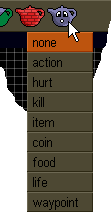
|
For example, brushes that must be picked up should have the item class.
Those brushes that must respond when the player hits the action key on them, must have the action class.
hurt and kill will hurt and kill the player when he collides with them
( the collider property must be set to call handler ).
coins are collectables like cherries, diamonds or ... coins.
food gives energy when picked up, and life gives credits.
waypoint can be used to specify some path's positions.
The default value none doesn't mean the brush is good for nothing. It just isn't interpreted as one of above.
For example, any dynamic brush with the propper collision response can be set to hurt or kill you.
Those above are just default behaviours and can be changed by each game if needed.
In fact, users can enter other values in this property, if their game knows how to handle them.
|
Status
We already talked about the status property.
It is used just for pure game logic.
By the case it can represent the open (0) or close (1) status of a door.
It can represent the state of a discution with a character or if you satisfied him with the needed object or not.
Or it can represent a moving direction: -1 for left, 0 for stop, 1 for right.
Or anything you need.
Target
The target property is usually set to the id of another brush,
but it can have any other meaning you want.
A path of waypoint dynamic brushes can be linked together by setting in this property of a brush, the
id of the next one. This can be a way to edit the moving path for a platform, in a more visual form.
A path of waypoint dynamic brushes can be linked together by setting in this property of a brush, the
id of the next one. This can be a way to edit the moving path for a platform, in a more visual form.
Death
The death property can be used to determine the cause of death.
For example if you have a spider dynamic brush, that kills Dizzy when it touches him, you can set
the spider's death property to a specific value (the same for all spiders). In the script you'll get the chance to test for this
value and display a specific death message.
User properties
The last 16 properties are called user properties and
they are free for the developer to use them as he needs in his game.
Of course the same property can be used differently in two different objects.
Have a written note of what of these properties you use in your custom objects and
what each of them does.
Conclusion
Phew! That was a long one. I hope I didn't lost you on the way, because these properies are very important.
So, if you're still with me, it means you have learned about logic properties, about static and dynamic brushes,
about their unique ids, materials and a few other more.
Now it is time to have another look at the editor's interface.
|
|